

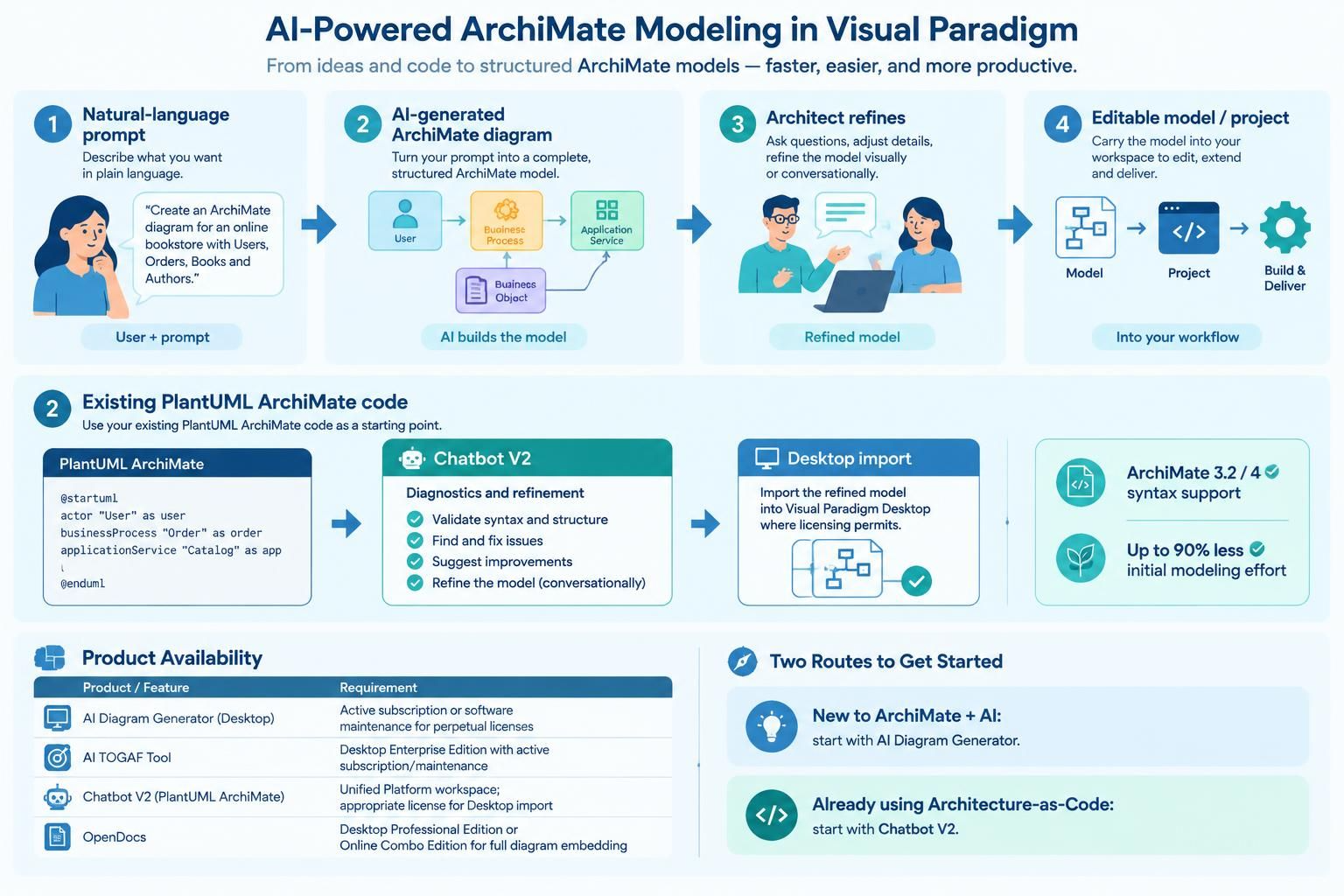
Bottom line up front: Visual Paradigm has integrated generative AI directly into its ArchiMate modeling ecosystem, enabling architects to generate standards-compliant diagrams from natural language prompts in seconds, refine them through conversational AI, and bridge the gap between PlantUML code and model-based ArchiMate projects. Teams can reduce initial modeling effort by up to 90% while maintaining ArchiMate 3.2/4 syntax compliance . The standout capability is the dual workflow: AI generates a high-quality starting point, then architects refine it either visually or conversationally—without sacrificing the rigor required for production enterprise architecture.
1. Why ArchiMate + AI in Visual Paradigm?
The Problem AI Solves
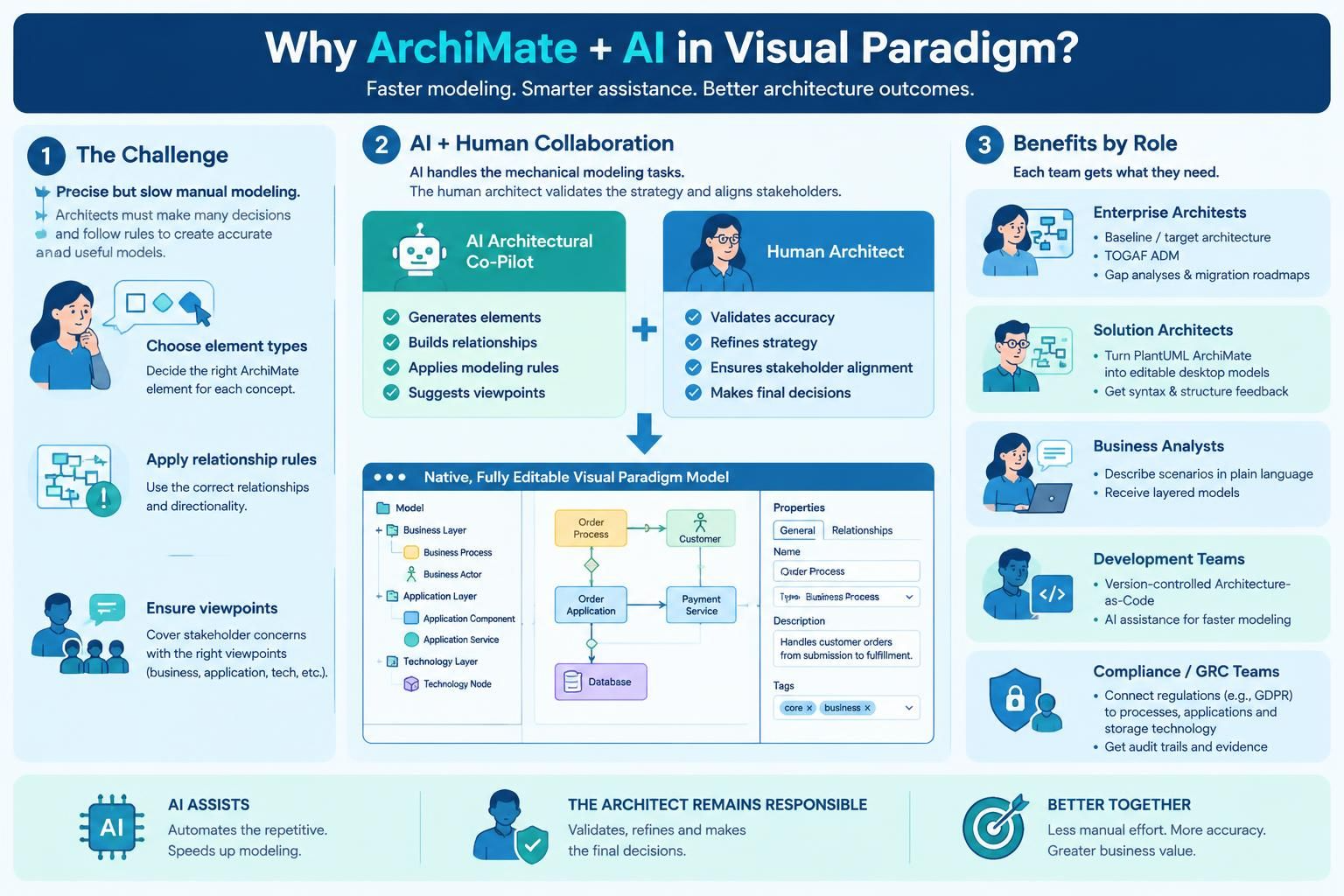
Traditional ArchiMate modeling is precise but slow. Architects must manually place elements, ensure relationship syntax is correct, and validate that viewpoints actually address stakeholder concerns. This creates a bottleneck: the people who best understand the business strategy are often not the ones fluent in ArchiMate notation.
The Visual Paradigm Approach
Visual Paradigm treats AI as an architectural co-pilot, not a replacement. The AI handles the mechanical burden—selecting correct element types, applying relationship rules, organizing by viewpoint—while the architect focuses on strategic validation and stakeholder alignment . Critically, the output is a native, fully editable Visual Paradigm model, not a static image. You can edit every element, relationship, and property after generation .
Who Benefits Most
| Role | Primary Benefit |
|---|---|
| Enterprise Architects | Rapid baseline/target architecture drafting for TOGAF ADM phases; AI TOGAF tool generates ArchiMate diagrams, gap analyses, and migration roadmaps from problem descriptions |
| Solution Architects | Convert PlantUML ArchiMate scripts into fully editable desktop models; AI diagnoses syntax errors and suggests structural improvements |
| Business Analysts | Describe a business scenario in plain language and receive a layered ArchiMate model without learning notation syntax first |
| Development Teams | Architecture-as-Code workflows with PlantUML, version-controlled and AI-augmented |
| Compliance/GRC Teams | Generate Motivation viewpoints linking regulations (e.g., GDPR) to processes, applications, and storage technology for audit trails |
2. Core AI-Assisted Features
2.1 AI Diagram Generator (Natural Language → ArchiMate)
What it does: You describe a scenario in plain English, and the AI generates a complete ArchiMate diagram with correct symbols, colors, and relationship rules.
Supported standards: ArchiMate 3.2 and ArchiMate 4, with optional Viewpoint selection (e.g., Layered, Application Usage, Implementation & Deployment) to focus the output on specific stakeholder concerns .
How to use (Desktop):
-
Navigate to Tools > AI Diagram Generation
-
Select ArchiMate Diagram as the type
-
Optionally select a Viewpoint from the dropdown
-
Describe your scenario in the text area
-
Click OK — the diagram appears as a native, editable model
2.2 AI Chatbot for PlantUML ArchiMate (Architecture-as-Code + AI)
This is the feature that bridges the code-first and model-first worlds. If your team maintains ArchiMate diagrams as PlantUML scripts, the Chatbot V2 can:
-
Auto-diagnose and fix syntax errors in imported PlantUML ArchiMate scripts
-
Add relationships and components conversationally (e.g., “Add a serving relationship from Application Service to Business Process”)
-
Generate multi-element architectural services (e.g., “Add notification service and shipping service”)
-
Perform AI architecture reviews and apply improvement suggestions automatically
-
Import the final result into Visual Paradigm Desktop as an ArchiMate 3.2 or 4 model
Workflow: Paste PlantUML script → AI cleans syntax → refine via chat → publish to OpenDocs or import to Desktop.
2.3 AI TOGAF Tool
For organizations following TOGAF ADM, the AI TOGAF tool generates ArchiMate artifacts (baseline, target, transition architectures), radar charts for capability assessment, impact analyses, gap visualizations, and work breakdown structures from a high-level problem description . This is available in Desktop Enterprise Edition with an active subscription or maintenance plan.
3. Example Use Cases
Use Case 1: Retail Digital Transformation
Prompt: “Generate an ArchiMate diagram for a retail company’s shift to e-commerce, including business processes for order fulfillment and application services like inventory management.”
AI output: A multi-layer “to-be” model showing business processes, application services, and supporting technology components. The architect then refines relationships and adds traceability links before presenting to stakeholders .
Use Case 2: Cloud Migration Options Analysis
Prompt: “Create a Technology Usage viewpoint for migrating a banking app to AWS, comparing re-hosting vs. re-platforming options.”
AI output: A layered model that helps project managers evaluate downtime risks through “what-if” analysis. The architect can modify the model conversationally to add specific AWS services or constraints .
Use Case 3: GDPR Compliance Audit Trail
Prompt: “Create a Motivation viewpoint linking GDPR requirements to customer data processes, CRM applications, and secure storage technology.”
AI output: An auditable trail visualizing how regulations impact operational architecture—useful for GRC teams and external auditors .
Use Case 4: PlantUML-to-Model Pipeline
A team maintains ArchiMate diagrams as PlantUML scripts in Git. They paste a script into the Chatbot V2, which fixes syntax errors and adds a missing database-to-web-server relationship. They then import the result into Visual Paradigm Desktop as an ArchiMate 4 model for formal review and traceability linking .
4. Example Diagram: PlantUML ArchiMate Code
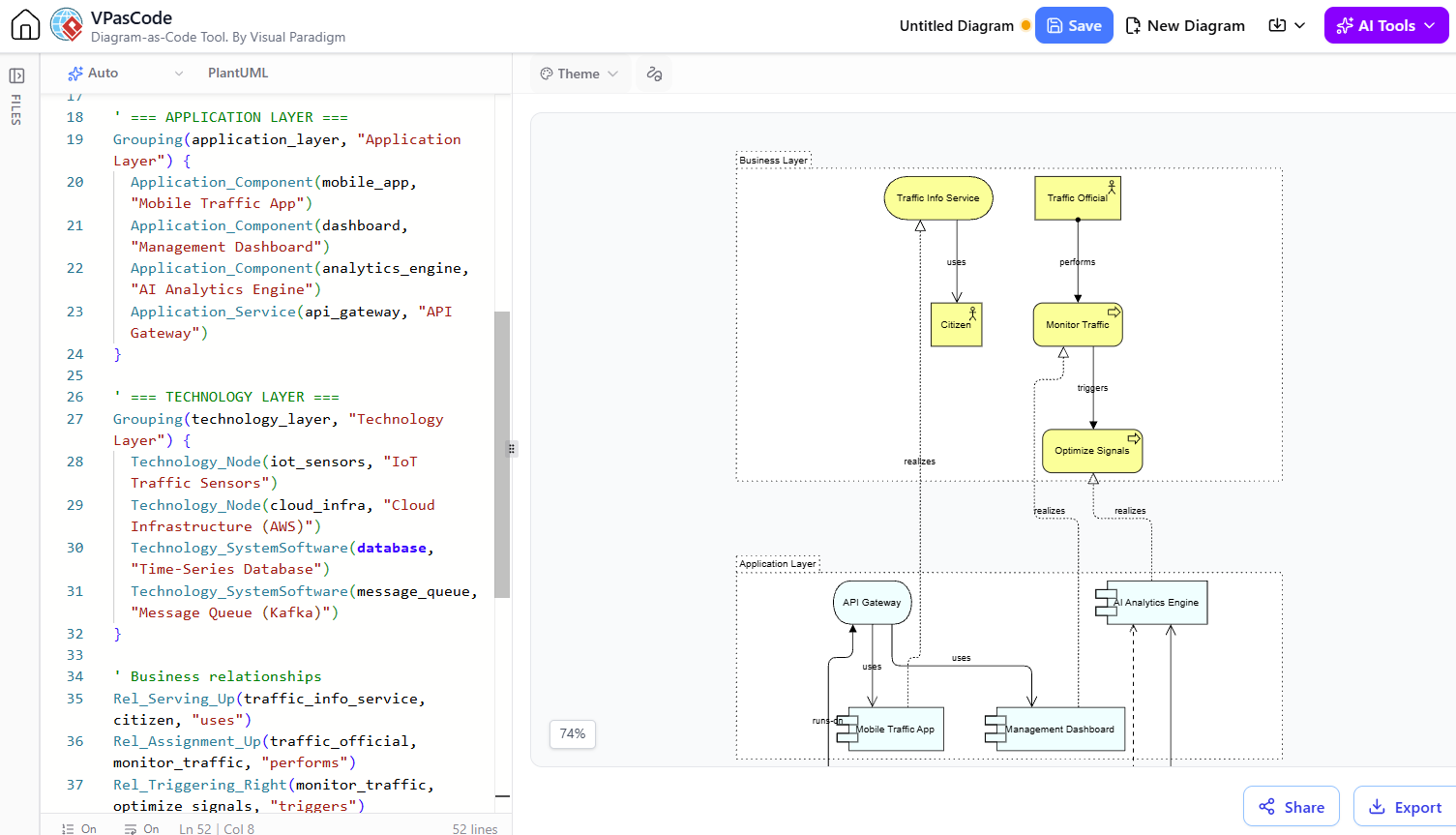
Below is a representative ArchiMate-PlantUML script for a Smart City Traffic Management system, illustrating the three-layer structure AI tools work with. This is the kind of code the Chatbot V2 can ingest, diagnose, and refine.
@startuml
!include https://static.visual-paradigm.com/plantuml-stdlib/Archimate-PlantUML/master/Archimate.puml

skinparam vpDiagramType ArchiMateDiagram
skinparam nodesep 4

title ArchiMate - Smart Traffic Management System

' === BUSINESS LAYER ===
Grouping(business_layer, "Business Layer") {
  Business_Actor(citizen, "Citizen")
  Business_Actor(traffic_official, "Traffic Official")
  Business_Process(monitor_traffic, "Monitor Traffic")
  Business_Process(optimize_signals, "Optimize Signals")
  Business_Service(traffic_info_service, "Traffic Info Service")
}

' === APPLICATION LAYER ===
Grouping(application_layer, "Application Layer") {
  Application_Component(mobile_app, "Mobile Traffic App")
  Application_Component(dashboard, "Management Dashboard")
  Application_Component(analytics_engine, "AI Analytics Engine")
  Application_Service(api_gateway, "API Gateway")
}

' === TECHNOLOGY LAYER ===
Grouping(technology_layer, "Technology Layer") {
  Technology_Node(iot_sensors, "IoT Traffic Sensors")
  Technology_Node(cloud_infra, "Cloud Infrastructure (AWS)")
  Technology_SystemSoftware(database, "Time-Series Database")
  Technology_SystemSoftware(message_queue, "Message Queue (Kafka)")
}

' Business relationships
Rel_Serving_Up(traffic_info_service, citizen, "uses")
Rel_Assignment_Up(traffic_official, monitor_traffic, "performs")
Rel_Triggering_Right(monitor_traffic, optimize_signals, "triggers")

' Application -> Business relationships
Rel_Realization_Up(mobile_app, traffic_info_service, "realizes")
Rel_Realization_Up(dashboard, monitor_traffic, "realizes")
Rel_Realization_Up(analytics_engine, optimize_signals, "realizes")
Rel_Serving_Up(api_gateway, mobile_app, "uses")
Rel_Serving_Up(api_gateway, dashboard, "uses")

' Technology relationships
Rel_Flow_Right(iot_sensors, message_queue, "connects-to")
Rel_Serving_Up(message_queue, analytics_engine, "serves")
Rel_Access_Up(analytics_engine, database, "uses")
Rel_Assignment_Up(cloud_infra, api_gateway, "runs-on")

@enduml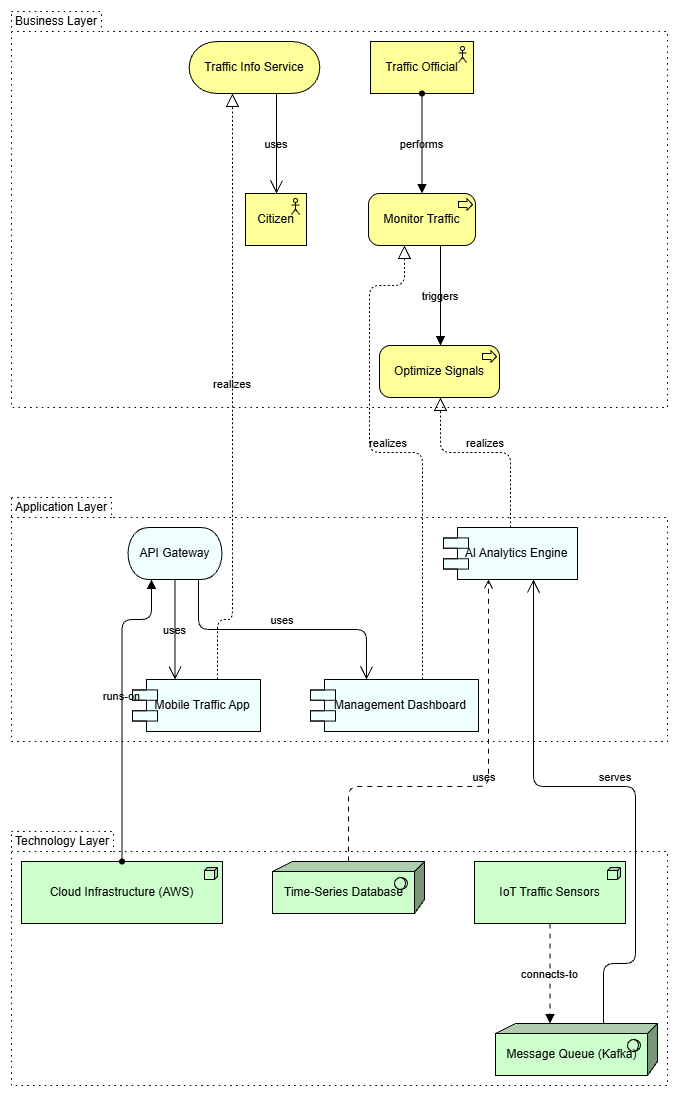
How AI enhances this workflow: The Chatbot V2 can detect if Rel(message_queue, analytics_engine, "serves") uses an invalid relationship type for ArchiMate compliance and correct it. It can also add missing elements on request (e.g., “Add a notification service for traffic alerts”) and generate the underlying structure automatically .
5. System Development Workflow with AI + ArchiMate
Step 1: Strategic Intent → AI-Generated Draft
An architect or business analyst describes the target system in natural language within the AI Diagram Generator. The AI produces a standards-compliant ArchiMate draft organized by viewpoint. Time saved: Hours of manual layout and syntax checking .
Step 2: Conversational Refinement
Using the AI Chatbot, the architect refines the model conversationally:
-
“Add a serving relationship from Application Service to Business Process”
-
“Switch to Application Cooperation Viewpoint”
-
“Connect the disconnected stakeholder node to the governance element”
The AI applies changes while maintaining ArchiMate syntax compliance .
Step 3: Code-to-Model Integration (if applicable)
If the team uses PlantUML for version-controlled architecture, the script is imported into Chatbot V2, cleaned, and then imported into Desktop as a native ArchiMate 3.2/4 model. This preserves the “architecture as code” workflow while enabling formal modeling and traceability .
Step 4: Validation and Impact Analysis
In Desktop, the architect adds cross-layer traceability links, runs impact analysis (e.g., “What happens if we decommission this legacy system?”), and validates the model against stakeholder concerns using viewpoint coverage .
Step 5: Documentation and Publication
The finalized diagram is embedded directly into OpenDocs (Visual Paradigm’s knowledge management platform) as a live, editable visualization within strategy documents, wikis, or architecture handbooks. Unlike a static export, updates to the diagram propagate to the document .
6. Standout Capabilities vs. Alternatives
| Capability | Why It Matters |
|---|---|
| Native ArchiMate 3.2/4 output | AI generates true model elements, not just pretty pictures. You can edit properties, add traceability, and export to reports |
| Viewpoint-aware generation | AI respects the 20+ official ArchiMate viewpoints, ensuring output addresses specific stakeholder concerns rather than dumping all elements onto one canvas |
| PlantUML ↔ Model bidirectional bridge | Unique in the market: start with code, refine with AI, end with a formal model—or go the other direction |
| Integrated TOGAF ADM support | The AI TOGAF tool generates ArchiMate artifacts within the ADM workflow, not as a disconnected diagramming exercise |
| OpenDocs integration | Diagrams live inside documentation, not as stale exports. Stakeholders see current architecture in context |
7. Tips and Tricks
Tip 1: Be specific in prompts, but not overly technical. The AI understands business language better than ArchiMate jargon. Instead of “Create a Business Actor with an Assignment relationship to a Business Process,” say “Model how a customer service representative handles refund requests.” The AI will select the correct ArchiMate elements .
Tip 2: Use viewpoint selection for stakeholder meetings. Before generating, select the viewpoint that matches your audience. An Application Usage viewpoint for developers, a Layered viewpoint for executives, a Motivation viewpoint for compliance. This produces immediately useful diagrams rather than generic models .
Tip 3: Treat AI output as a first draft, not a final answer. The AI gets syntax right, but it doesn’t know your organizational politics, legacy constraints, or undocumented business rules. Always review and refine generated relationships and elements with domain experts .
Tip 4: For PlantUML users, run the AI diagnostic before manual debugging. The Chatbot V2 catches syntax and relationship-validity errors that would take minutes to find manually. Paste, let AI fix, then review .
Tip 5: Use OpenDocs for living architecture documentation. Embed generated diagrams directly into strategy documents. When the architecture changes, update the diagram once and the documentation reflects it—no version-control chaos .
Tip 6: ArchiMate 4 users should leverage the automatic mapping. When importing a PlantUML script, select ArchiMate 4 as the target. Supported elements are automatically mapped to official ArchiMate 4 model types, saving manual rework .
Tip 7: Start with a narrow scope for AI generation. Rather than “model the entire enterprise,” prompt for a specific capability or process. The AI produces more coherent results when the scope is bounded, and you can chain multiple generations together.
8. Availability and Requirements
-
AI Diagram Generator (Desktop): Visual Paradigm Desktop with active subscription or software maintenance (for perpetual licenses)
-
AI TOGAF Tool: Desktop Enterprise Edition with active subscription/maintenance
-
Chatbot V2 (PlantUML ArchiMate): Available through the Unified Platform workspace; Desktop import requires appropriate licensing
-
OpenDocs: Desktop Professional Edition or Online Combo Edition for full diagram embedding
For teams new to ArchiMate + AI, the recommended entry point is the AI Diagram Generator in Desktop—it requires no PlantUML knowledge and produces immediately editable models. Teams already using Architecture-as-Code should start with Chatbot V2 to add AI diagnostics and refinement to their existing PlantUML workflows.